Exercise 2 – Terrain analysis
Terrain analysis
Contents
- Part 1: Watershed analysis
- Objective: To delineate the watersheds of the Dean and Roaring Brooks and the west branch of the Swift River, and calculate their respective areas
- Part 2: Stream ordering
- Objective: To outline the streams in a watershed and classify them according to two methods
- Part 3: Viewshed
- Objective: To determine how much of a watershed is visible from an observation tower
Part 1: Watershed analysis
Adapted from Spatialabs 2013
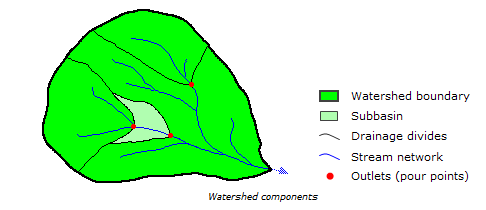
A watershed or drainage basin describes the area of land from which all surface waters (rain, melting snow or ice) converge at a single point. This point is the exit of the watershed and usually forms a stream or lake. Watersheds are important hydrologic and environmental units because all water within one watershed is connected. Thus, water pollution at one point in the watershed will affect the entire area downstream of that point and thus becomes an important issue in environmental restoration and protection. Since water always flows from the highest point to the lowest, watershed boundaries (drainage divides) are defined as the ridges separating flow.
The problem
The geology dept. at MHC has an ongoing study on the surface and subsurface hydrology in the town of Shutesbury, located just west of the Quabbin reservoir. In this town the US Geological Survey (USGS) has installed 3 river gauges that track the surface water flow at Dean and Roaring Brooks, and in the west branch of the Swift River, a major source of water to the Quabbin. By determining the extent of the land area that contributes water to these streams, and eventually to the gauges, we can study different aspects of the hydrology of the area.
Objectives
To delineate the watersheds of the Dean and Roaring Brooks, and the west branch of the Swift River, and calculate their respective areas.
Data description
The dataset in Watershed.gdb in your working folder contains a 30m DEM and the streams of the state of Massachusetts, these will need to be clipped to our Area of Interest (AOI):
- 30m DEM of Massachusetts (DEM_Mass_30m) from MassGIS
- Streams (HYDRO25K_ARC) in Massachusetts from MassGIS
- Pour points (USGS Gauges), both vector (Gauges) and raster (pour_points_raster). The raster version is hard to see so the vector has been provided for visualization, the analysis will be done with the raster
- AOI is a polygon that covers our area of interest (AOI), used to clip the DEM and streams to make them more manageable
Task 0 – Preliminary tasks
- Load the data from the Watershed GeoDB and study it
- Clip the HYDRO25K_ARC using the AOI, call the result HYDRO25K_ARC_AOI (Hint: vector CLIP function)
- To Clip the DEM use the function Toolbox\Spatial Analyst Tools\ Extraction\ Extract by Mask
- Input raster – DEM_Mass_30m
- Mask data – AOI
- Output – DEM_AOI
- Create a hillshaded surface Toolbox\Spatial Analyst Tools\Surface\Hillshade
- As input use DEM_AOI
- Output Hillshade_AOI
- Leave the rest as default (but click on the help/Info buttons to know what they are)
Use this hill shaded theme to visualize your results. It can be made partly transparent and overlap over a nicely colored DEM for a good visual effect
When done turn off, better yet, remove, the statewide data. You don’t want to keep drawing those big datasets, they slow down the software.
To delineate watersheds in GIS we require several steps including (detail instructions are shown below)
- Filling sinks in the elevation model
- Determining the direction of water flow through each grid cell
- Identifying stream channels, flow accumulation
- Determining the set of adjoining cells that contribute water to a particular pour point watershed.
This process requires several input datasets derived from the DEM that need to be created first. These are: filled sinks, flow direction, and water accumulation. And we also need the location of the gauges or pour points.
Task 1- Create a hydrologically correct DEM by filling any artificial holes (sinks) in the data.
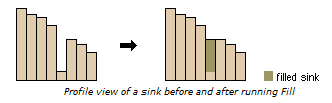
Sinks represent depressions (real or erroneous) in your data that impede water flow and therefore must be removed. The software fills the sinks by raising their elevations to equal neighboring cells so that water can continue to flow across them.
- Fill the sinks in the DEM
- Toolbox » Spatial Analyst Tools » Hydrology » Fill
- Input surface raster – DEM_AOI
- Output surface raster- filled_DEM
- Assign the same color scheme to both filled_DEM and DEM_AOI and compare them (there are several color schemes suitable for elevation).
Can you see any difference between the two DEM’s? Don’t worry, puny humans can’t tell the difference between these but the computer can 🙂
Task 2 – Determine which way water flows from cell to cell
- Determine flow direction for your filled DEM
- Spatial Analyst Tools > Hydrology > Flow Direction
- Input here is filled_DEM
- Output – flow_dir
Water always flows from high values (elevation) to low values. The flow direction layer looks strange but if you look at it carefully it will start to make sense.
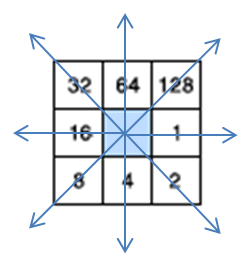
The legend will have numbers in from 1 to 128 according to the figure on the right. Cells with values of 1 are cells flowing to the East, south flowing cells have a value of 4, 16 to the west, and 64 to the north. You could change the legend values using the symbology pane to make better sense of the image. See figure below for a suggested legend.
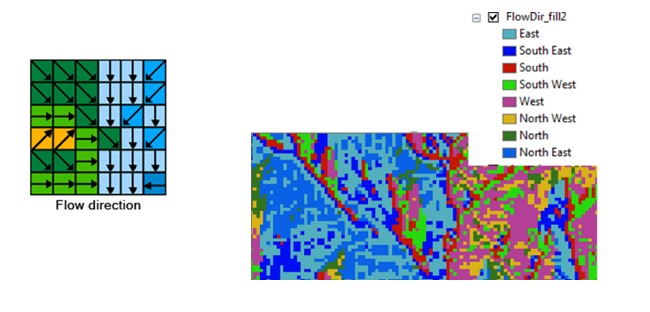
Look for areas of contrasting color changes and study the legend, you should be able to see where the flow of water changes from ‘East to West’ (i.e. west direction) to ‘West to East’ (east direction). See figure on the right for example and the figure below for a concept of water flow, remember the water will flow from higher to lower elevations.
Task 3 – Determine where water accumulates
- To determine where water accumulates and creates channels, go to:
- Spatial Analyst Tools > Hydrology > Flow Accumulation
- Use flow_dir as input
- flow_acc as output.
- Output data type – Integer
- Invert the color scheme to show a water accumulation (streams) darker on a white background (Double click the color rectangle (legend) of flow_acc to go to the Symbology pane and tick Invert color box).
You can just barely make out some of the stream channels. Every cell has a numerical value equal to the number of cells that “provide” water to it (see illustrations)
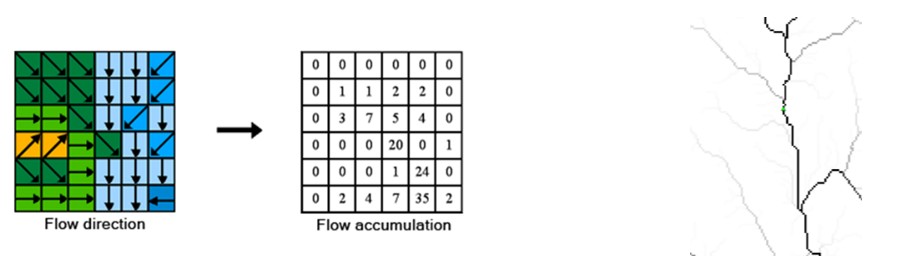
This raster layer could serve as a proxy for a hydrology layer (streams) if we don’t have this as it shows areas where water accumulates over the terrain. The value of a cell reflects the number of cells, above it, that contribute water to that particular cell. You might need to reclassify the raster to “determine” what can be considered a stream and what not (a 0/1 raster). Also, you might have to vectorize the result.
Using this raster, you can also do some extra hydrological analysis like stream orders.
- Turn on (and off) the Hydro25K_Arc_AOI layer and notice the similarities and differences.
- Also, click on different water accumulation pixels in the raster layer (turn off all layers except Flow Accumulation). Notice how the pixel values change in different parts of the streams. Darker pixels should have larger values than lighter ones. These numbers represent the numbers of cells that contributed water to that particular pixel where you clicked.
- Also verify that the theme Gages and pour_points_raster fall on top of the water accumulation channels.
Task 4 – Determine watersheds
You are finally ready to delineate watersheds.
- Spatial Analyst Tools > Hydrology > Watershed
- flow_dir as your Input flow direction raster
- pour_points_raster as Input raster or feature pour point data (check note 2 below)
- Name the output raster Watersheds
- Disregard Pour point field
This should create 3 watersheds, one for each gage site. You might want to add a “Name” column in the attribute table of Watershed and add the corresponding name according to the info in Gages to facilitate answering the questions bellow.
NOTE 1: In the Hydrology toolbox there’s a function called “Basin”. This is similar to Watershed but it doesn’t require pour points. It evaluates the whole area. Sometimes this is convenient but sometimes it gives strange results. Try it and compare the results.
NOTE 2: In this exercise you were given the pour points as vectors (Gauges) and raster (pour_points_raster). Either version can be used in the Watershed function. The tricky part of using vector(s) is that the point(s) MUST fall on top of one of the rasters where water accumulates (despite the fact that Watershed doesn’t use Water Accumulation). This condition is not always met just like you can see the difference between Water Accumulation and the stream layer, so the positions of the Gauges had to be adjusted to match the underlying raster for the purpose of this exercise.
Task 5 – Calculate area of watersheds
- Open the attribute table of the watershed raster created and notice the count column in each watershed, this is the number of raster cells in each one. You multiply this number by the area of one cell (get the properties of the layer and find cell size and map units ).
Question 1. What is the area of one cell in meters square (m2)? _____
Question 2. What is the area of the Dean Brook watershed in square miles? _______
Question 3. What is the area of the Roaring Brook watershed in square miles? ________
Question 4. What is the area of the West branch of the Swift River watershed in square miles? ______
- Save the project for next part.
Part 2 – Stream Order Analysis
Stream ordering is a method of assigning a numeric order to links in a stream network. This order is a method for identifying and classifying types of streams based on their numbers of tributaries. Some characteristics of streams can be inferred by simply knowing their order.
For example, first-order streams are dominated by overland flow of water; they have no upstream concentrated flow. Because of this, they are most susceptible to non-point source pollution problems and can derive more benefit from wide riparian buffers than other areas of the watershed.
The Stream Order tool in ArcGIS (under Spatial Analyst\Hydrology) has two methods you can use to assign orders. These are the methods proposed by Strahler (1957) and Shreve (1966).
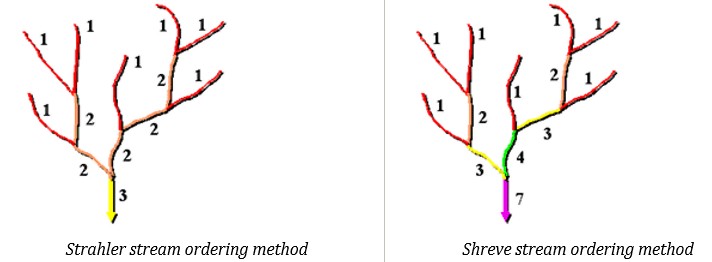
In both methods, the upstream stream segments, or exterior links, are always assigned an order of 1.
Strahler method
In the Strahler method, all streams without any tributaries are assigned an order of 1 and are referred to as first order. The stream order increases when streams of the same order intersect. Therefore, the intersection of two first-order streams will create a second-order stream, the intersection of two second-order streams will create a third-order stream, and so on. The intersection of two streams of different orders, however, will not result in an increase in order. For example, the intersection of a first-order and second-order stream will not create a third-order stream but will retain the order of the highest ordered stream.Shreve method
As with the Strahler method, all exterior streams are assigned an order of 1. For all interior streams in the Shreve method, however, the orders are additive. For example, the intersection of two first-order streams creates a second-order stream, the intersection of a first-order and second-order stream creates a third-order stream, and the intersection of a second-order and third-order stream creates a fifth-order stream.
Task 1 – Stream ordering
You have already most necessary data to compute stream order in our AOI (Flow direction and flow accumulation, both from Part 1- watershed delineation)
- Open the project for Part 1.
Before, we told you that the flow accumulation raster can work as a proxy for a river/stream layer. So, let’s prepare it by separating the cells where water accumulates from the cells with no accumulation. We’ll use a value of accumulation of 100 to start separating the streams (the powers that be decided that an accumulation of less than 100 is not significant).
- Launch to the Reclassify tool (Spatial Analyst Tools > Reclass > Reclassify)
- Use flow_acc as input
- Use Value as Reclass fiedl
- Click the Classify button and choose 2 classes
- In the upper values for the first class type 100 and leave the other upper value as it is (it’s the highest accumulation). Click OK
- Back at the first Reclassify dialog, enter the 0 as New values for the 0-100 range, and 1 for the second range, leave NoData untouched (you have to hit Enter after you change the numbers)
- Type Streams_raster as output and hit Run
Now you should have a raster with only two values, 0 & 1, showing where the water accumulates. Let’s classify the streams next.
- Launch the Stream Order tool (Spatial Analyst > Hydrology > Stream Order)
- Use Streams_raster as input
- flow_dir as, you guessed it, the flow direction raster
- Call the output Strahler_streams
- Leave STRAHLER as method of stream ordering. Click OK.
Enjoy your multi color result. Compare the new stream layer with the HYDRO25K_ARC_AOI layer you have in the CP. Put the vector layer on top of the raster, in the CP, and turn on and off. Also add the DEM_AOI/Hillshade_AOI with a suitable elevation symbology under those layers. Zoom in several places and pan around the scene to notice any differences. You should be able to see many artifacts resulting from the processing, a result of the shape of the surface (DEM), software misinterpretations. Also, many smaller channels were not digitized in the vector stream layer. The larger channels (higher flow accumulation) should be better than the small ones.
- Now run the Stream Order procedure using the Shreve method and compare those two results. Can you explain the difference in results?
Question 5. How many stream order values are in Strahler method? ______
Question 6. How many stream order values are in Shreve method? ______
- Open Attribute Table of Strahler_streams.
In the attribute table you’ll only see the classes and how many pixels there are in each stream classes (remember that this is still a raster layer). It doesn’t tell us the number of individual streams (nor the length) in each class. For this we need to convert these to vectors.
- In the top tool box open Conversion Tools > From Raster > Raster to Polyline.
- As input raster enter Strahler_streams
- Field should say “Value”
- Name the output Strahler_streams_vector
- Make sure Simplify polylines box is ticked
- Background value Zero
- Compare the result, like you did before, with the HYDRO25K_ARC_AOI layer.
You’ll notice that the resulting layer is not as neat as the Hydro_arc layer. That’s expected, your result comes from a raster-vector conversion and needs lots of refinement and editing, but for now it’ll do just fine. Good job!
- Right click on Strahler_streams_vector layer in the CP and open the attribute table.
Notice that there is now a column called “grid_code” for each entry in the table (each line segment in the map). This is, as you might have guessed, the stream order. Please make a map that shows the streams with different symbols (you should know how to do this without instructions)
Notice also that there is a column called Shape_Length, again this gives us the length of each segment (in map units, or meters in this case).
- In the attribute table of the streams vector layer, right click on the heading of the column called “grid_code” and choose Summarize. This creates a table of summary statistics for each stream order. Right now, we only want the total length per stream order.
- In the next dialog, under Statistics Fields select Shape_Length and for Statistics Type select Sum.
- Enter Stream_order_summary as output table. Click OK.
At the bottom of the content pane (CP) there’s a table, open it and observe the total length of each stream class.
Question 7. What is the total length of streams order 1 in miles? ______
Question 8. What is the total length of streams order 6 in miles? ______
Question 9 (Challenge) What is the total length in miles of streams order 2 in the Dean Brook watershed? ____
Hint: You might want to extract that watershed and maybe vectorize it 😉
Question 10. What is the highest order of stream in Dean Brook watershed? _______
Part 3 – Viewshed
Now that we have delineated the extent of the Dean Brook watershed, the town of Shutesbury, MA, where most of this watershed is located, wants to establish an observation tower on top of nearby hill to monitor for forest fires. They have selected the top of “January Hill”, northwest of Dean Brook watershed, where they’ll build a 10 meter high observation tower.
- Add the point layer called January_Hill
- Calculate the viewshed (i.e. visible areas) from this point (Spatial Analyst > Surface > Geodetic Viewshed)
- Input Raster DEM_AOI
- Input point observer features January_Hill
- Open Observer parameters and enter 10 meters for Observer offset (NOT “observer elevation”; don’t forget the unit!) and click Run
Question 11. (Challenge) What proportion, in percent, of the Dean Brook watershed is visible from top of the observation tower? _____%
Hint: you know the area of the watershed (see question 2). You need to clip the viewshed raster to this watershed and calculate the area of visible areas. Keep consistent units.