Geoprocessing in ArcGIS
Contents
- Part 1: Tutorial – Geoprocessing operations (Buffers, Overlays, and Clipping)
- Objective: To find potential campgrounds sites for a State Park..
- Part 2: Case Study – Land Suitability (Overlays)
- Objective: Locate a suitable site to build a new luxury retirement home in South Hadley.
Part 1: Tutorial – Geoprocessing operations (Buffers, Overlays, and Clipping)
Our goal in this exercise is to find potential campgrounds sites for a State Park. The campground needs to be within the buffer zone created for the lakes. However, these will be ‘drive in’ sites and they must also be within the buffer zone of the roads. The final map will show locations that are both within 50, 150 or 500 meters of a lake (depending on the size of the lake) and within 300 meters of a road. Some of the area selected might fall within private properties (i.e. not state owned) so we need to identify those areas for purchasing purposes.
The data contain a subset of roads, lakes, and public lands in the town of Hugo, north of St. Paul, MN. All the data is in UTM 15N meters.
The folder \ex6\Hugo contains the following shapefiles:
- AOI.shp – Area of interest
- Lakes.shp
- Public_Land.shp
- roads_Hugo.shp
- It also contains a layer file roads_Hugo.lyr
NOTE: A layer file (.lyr) is a file that stores the path to a source dataset and other layer properties, including symbology. It doesn’t have any GIS data, it only has information about symbology and it needs a connection to a real dataset.
Preliminary Task – Catalog
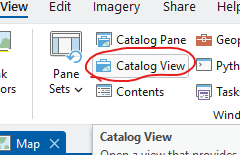
- After copying the data to your X:\user drive and creating a new ArcGIS project, in the ribbon go to the View tab and click the icon for Catalog View. Notice that a new tab in the ribbon and new objects in the CP.
The “Catalog” is the tool that you must use to copy, move, rename, delete, etc. GIS data, especially when dealing with GeoDBs. It works like the Windows file explorer but it’s designed for GIS data.
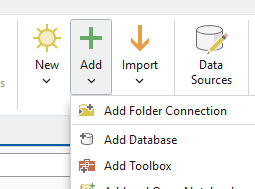
- Click the down arrow under the Add button in the Create group and choose Add Folder Connection
- Navigate to your X:\user folder under “This PC” select the X drive on the right and choose OK
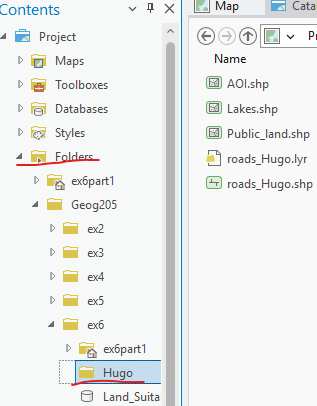
- On the CP, while looking at the Catalog window, open Folders, navigate to your X drive, and explore the content of the folders inside:
- Check the Land_Suitability.gdb: You should be able to click on the GDB on the left (CP) and in the middle window, you will see its content on the right
- Go inside \Ex6 folder and explore the content (shapefiles) of the \Hugo folder
- If you haven’t added the themes in the \Hugo folder already, right click on one of the themes and choose Add to Map. Verify that it is added to the map by going to the Map tab on top of the Map window
- Add the rest of the themes by Ctrl clicking them, then right click and Add to Map
Task 1a: Clipping
- Study the roads_Hugo.shp data theme.
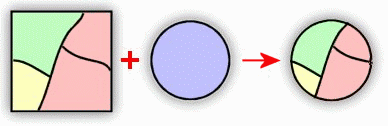
This theme contains a much larger area than what we need. “Clipping” cuts features in one theme using the boundaries of polygon features from another theme (like a cookie cutter).
The area of interest is delimited by the shapefile called AOI.shp. We’ll use this to Clip roads_Hugo.shp.
- Add AOI.shp to your map view and in the Analysis tab click on the red Tools icon on the top to activate the Toolbox (Geoprocessing pane), then:
- Click on Toolboxes
- Open Analysis Tools > Extract > Clip. (This is called Pairwise Clip in the Tools group in the Analysis tab of the ribbon)
- Input Features – roads_Hugo (or drag and drop from the table of content),
- Clip Feature (the “cookie cutter”) – AOI
- Call the output roads.shp. Make sure to save it in your working folder or save it inside the project GeoDB and no need to use the extension “SHP”
- Click OK. Wait for it to finish and study the result
Note: Some of these functions in this “Analysis toolbox” can be found in the Tools group of the Analysis ribbon on top. They have a different name, for example, Clip is called Pairwise Clip (why did they changed the names? I guess the programmers needed to justify their salaries 😐
Task 1b: Fixed distance buffering
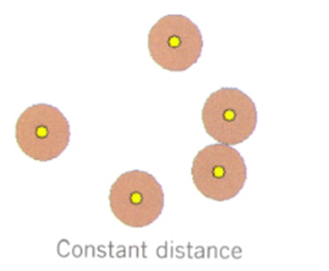
A buffer is an area drawn at a given distance around a feature. Features lying inside the buffer have a different status from features lying outside the buffer.
Now that we have the Road theme for our area of interest, let’s buffer it!
- Back in the Geoprocessing pane:
- Analysis Tools > Proximity > Buffer. (Called Pairwise Buffer in the Tools group of the ribbon)
- Input Features – roads
- Output Features – road_buffer_300m (Note: if saving inside the GeoDB don’t use the shp extension; if saving outside the GeoDB do include it)
- Distance, choose Linear Unit – 300 Meters
- Set the Dissolve Type to “Dissolve all … into single feature”
- Click Run.
Examine the result. Open the table of the road buffer. Does it look strange? How many objects (buffers) are there? ______. This result is a consequence of the “Dissolve All” we applied. It created a “multipart” polygon.
NOTE: You could have done this buffer leaving the default Dissolve Type to No Dissolve. This would create a theme with multiple items, one for each individual buffer polygon. Try it using a different output name and examine the table to see the difference.
Task 1c: Variable Distance Buffer
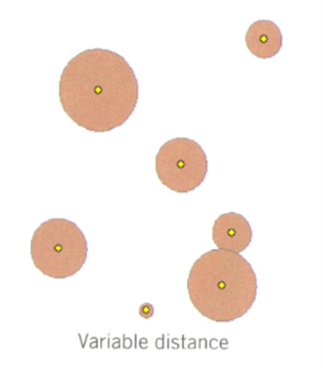
Now let’s buffer Lakes.shp using a variable distance. The buffer distances are:
- lakes with size class 1 = 50 meters
- lakes with size class 2 = 150 meters
- lakes with size class 3 = 500 meters
This exercise involves the following three steps (step by step instructions afterwards).
- First, add new field in table to hold the variable distances.
- Second, Select by Attributes to assign attribute values for the buffers
- Third, apply the buffer operation.
Step by Step instructions:
- Make sure Lakes.shp is in the CP, and open the attribute table.
- Add a field, and create a new short integer field named buffdist, or something descriptive.
- Use Select by Attributes (or from the ribbon Map\Selection group\Select by Attribute) to select each of the lake size classes:
- Select SIZE_CLS = 1. Notice that only the small (SIZE_CLS 1) lakes are selected now
- With the table open, right click on the buffdist column and choose Calculate Field. Enter a value of 50. Only the selected objects have their values updated
- Assign the appropriate buffer distance the other lake size class, placing the value in the newly created field (see the values below Task 1c heading just above)
- Close the table. Make sure you unselect any selected polygons or the buffer will only work on those selected polygons (click on Selection > Clear).
Now create the variable distance buffer:
- Call the Buffer function in the Analysis Tools > Proximity > Buffer
- Use Lakes as Input.
- Output Features, something logical, like Var_Lake_Buffer
- Next to Distance select Field instead of Linear Unit like you did previously
- Click the down arrow in the blank box and specify the field you created in the previous step, buffdist
- IMPORTANT: Side Type – Exclude the input polygon (to exclude the water in the output; we only want campsites on dry ground!)
- Select Dissolve Type as All output features….
When the buffering process is finished, it should display the buffer data theme. Study the result, it should look like a bunch of donuts. Open the table. How many objects do you see? _____. It looks awfully similar to the road buffer, doesn’t it? Now you know why.
Task 2: Data overlay
Overlays are a primary way to combine information from two or more separate themes. We have already created our starting themes for our objective: 1- the variable distance lakes buffer and 2-the fixed distance roads buffer. We must modify these themes prior to overlay them so that we may easily interpret the results after the overlay. We’ll add a field to each input data theme that specifies the factors we wish to use later in our analysis.
- Create a new short integer column in the lakes buffer table, name it something like inside_lbuffer, and give it a value of 1 for all the lake buffer areas (Hint: Calculate Field).
- Do the same for road buffer. Insert new field (inside_rbuf) and assign it a value of 1 to indicate it is inside the road buffer.
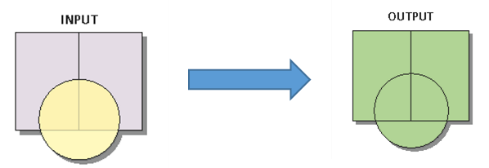
The final step is to UNION the two buffer themes. In a Union overlay all areas are included in the output.
- In the Analysis tab Tools > Toolboxes > Analysis Tools > Overlay > Union
- Specify the input theme Var_Lake_Buffer and road_buffer_300m (just add the two themes to the list)
- Specify the output them Union_Lk_Rd
- Press Run.
Examine the “unioned” theme and open the attribute table for this theme. Note the number of records. Why do you have only _____ record(s)? You can see more polygons than that on the screen. You know that these polygons came from “dissolving” of buffers in the previous task. Later we will “ungroup” polygons in this file, creating a row for each polygon in the attribute table.
- Open the attribute table of Union_Lk_Rd and select by attribute the polygon(s) where both inside road buffers and inside lake buffer attribute = 1 (areas that are inside both roads and lakes buffers at the same time) (this should be easy enough to just select with the mouse in the table).
- Making sure the areas inside both buffers in Union_Lk_Rd theme are selected right click on the theme in the CP and Data > Export Features and export only the selected records (where in_both =1) to a file called Acceptable_Areas_temp (temp because we’ll refine this theme a little bit more).
NOTE: Steps 11-15 could have been saved by just doing an INTERSECTION instead of an UNION of Var_lake_buffer and road_buffer_300m 🙂 Do it and verify that you get the same result. We’ll do intersection in part 2.
Open the attribute table and note that there’s only one object in the table, still we see in the map that there are multiple polygons. Let’s ungroup them:
- In the Analysis tab Tools > Toolboxes > Data Management Tools > Features > Multipart to Singlepart. Use Acceptable_Areas_temp as input and save the output as Acceptable_Areas.
This will separate the combined polygons to and create a table row for each. You should have 33 records in the table for the single part file.
Now before you print/export the map you need to determine the size (in acres or hectares) of your acceptable sites. Notice that some areas are too small therefore not suitable for campground.
- Open the attribute table of Acceptable_Areas and
- Add a Double field named “Hectares”
- Right click on the column heading for Hectares, and left click and Calculate Geometry
- Specify Area in the Property drop down box, use the default coordinate system, and Hectares for Units, then O.K.
HINT: The new Hectares column should be populated with numbers, with values between 0 and 400
- Right click on the Hectares column, and click on Visualize Statistics:
HINT: Count should be 33. If it isn’t, perhaps you selected the wrong theme, or made a mistake in the processing chain. The total area (Sum) should be over 1000, but below 1400.
Question 1: What is the total number of Hectares of suitable areas?
Question 2: How many polygons have an area of less than 1 Hectare?
Task 3 – Estimate amount of Private (non-public) land in proposed Campsites locations.
To find out which areas in the Acceptable_areas theme is private land, i.e. the town will need to purchase, to make it a campground, let’s “erase”, from the acceptable areas, those that are public lands.
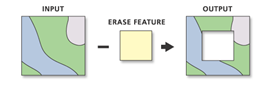
Erase is the opposite of Clip. Instead of a cookie cutter we have and “eraser”
- In Analysis tab Tools >Toolboxes > Analysis Tools > Overlay > Erase
- Use acceptable_areas as input, use Public_Land as the Erase Features theme (eraser). This removes the publicly owned land from your Acceptable Areas
- Name your new theme in the Output Feature Class to ‘Campgrounds_on_Private_Land’.
This is the land that would need to be acquired if the community wants to build campsites.
Because shapefiles don’t recalculate the areas of polygons as they are modified, we have to recalculate them ourselves. AGAIN: Don’t ever trust an “area” column in a shapefile unless you calculated it yourself. The same applies to “regular” attribute columns like the “Hectares” we created. The only exception to this rule is the column called “Shape_Area” in a GeoDB, this column gets recalculated but its units are always in “map units”, in this case meters, so we’ll recalculate our own hectares because it’s so easy to do so.
- Recalculate the geometry on the Hectares column on Campground_on_Private Land (Right click on the Hectares column, then Calculate Geometry, choose Hectares as Units). Notice that we’re “recycling” a previous column.
Question 3: What is the total number of Hectares of suitable areas in private land? ____________
Question 4: How many polygons now have an area of less than 1 Hectare? _______________
Question 5. Create a Layout that includes roads and lakes (not buffered!), and Campgrounds on Private Land. Submit to Canvas as PDF (Yourname_Ex6_Part1).
HINTS: Use appropriate colors (don’t make lakes red!). Label each theme with descriptive text in the legend (edit in the CP). Include scale bar, north arrow, title/author, and grid.
Question 6. Create a cartographic model. Add a title and your name, and save it as PDF (make sure I can read it). Save as Yourname_Ex6_cartoModel1.pdf. Upload to Canvas.
HINTS: Remember to list only the themes you actually used for the analysis, the procedures, and the child themes. Use colors/shape consistently and make sure you connect the boxes correctly.
Part 2: Case Study – Land Suitability (Overlays)
You have to find a suitable site to build a new luxury retirement home in South Hadley. The optimum place for this building complex must meet the following criteria:
- Surface water – site must be located at least 500 feet away from lakes, streams, swamps and above the Connecticut River’s 100-yr flood zone.
- Land-use – consider the use of “undeveloped land” (crop, pasture, forest, open land, recreation, transitional, brush land/successional, orchard, and nursery).
- Topography – no steep slopes (less than 5% slope).
- Transportation – only heavy and medium roads can be used for site access but it must be at least 250 feet away from the road.
- Size – available site should have an area of least 50 acres (~ 20.2 hectares).
Data set description:
All data in the GeoDB Land_Suitability.gdb came from MassGIS and are in Massachusetts State Plane Coordinate System, datum NAD83, unit meter (MASPCS83 meters). The files have been clipped (you know how to do this) to the outline of the town of South Hadley. The included themes are:
- South Hadley – A polygon with the town limits
- Hydro_arc – rivers/creeks, and lake/pond/wetland outlines
- Hydro_poly – lake/pond/wetland areas, used for final map production (outlines of this are in Hydro_arc; we won’t be using this theme; here, only, for completeness)
- Roads – according to classes of the Dept. of Transportation. Only use roads classes 1-4
- Floods – flood zones according to the EPA
- Slope – slopes, classified into discrete ranges (steep & flat). You’ll learn how to calculate slopes and to do this “reclassification” of the original raster file in a later exercise
- Landuse_2005 – land use classes from 2005 aerial photographs
NOTE: At the end, you’ll be asked, again, to create a cartographic model. So, as you go through the exercise, sketch the steps. Start with the original data, the different operations (selections/extractions/ unions, etc.) and the results.
Task 1 – Buffers
We’re creating some buffers, or areas of protection/exclusion, around water bodies and major roads. Our final selection must exclude these areas.
Note: Always study the results, both spatial and attributes.
- Create a new project and explore the content of the GeoDB Land_Suitability as instructed in part 1
- Create a buffer theme of the Hydro_arc using a linear distance of 500 US Survey feet (CHECK THE UNIT!). Save the results as Hydro_arc_Buffer.
- Extract Roads class 1-4 and save as Major_Roads.
- Create a buffer of Major_Roads using 250 feet. Save the output as Major_Roads_Buffer.
Task 2 – Overlay-Union
Now let’s put those two buffers (exclusion zone) together using a geoprocessing operation called UNION.
- In the Tools group in the Analysis tab get the UNION (Overlay Features).
- Add both buffers as input (drag & drop or pick from down arrow at Input Features)
- Call the output Buffers
- Click RUN
- Study the resulting theme Buffers and represent it using Single Symbol
These polygons represent areas that have to be excluded for the final site selection. It should show all the buffers together. We could have selected to dissolve some of those extra lines (remember how?), but it is not necessary now.
ALSO, notice that the Union operation is equivalent to a selection with the OR operator when making a selection: everything is included.
HINT: You should have around 20,487 polygons in Buffers, if you haven’t dissolved any polygon
Task 3 –Selection of suitable land
- Turn off all themes in the CP and add the Landuse_2005 theme inside Land_Suitability.gdb (NOT the theme file outside the GeoDB). Study its attribute table. The column called LU05_DESC has the names of the different types of land use.
- Display this theme using Unique values for each class in LU05_DESC. Pick a palette you like.
- If all the classes look the same gray color, click the button (on top of the symbols in the classes tab) that says “Add all values”
You know by now that ArcGIS uses the ugliest combinations of colors possible when displaying themes. So let’s represent this theme a little better with a previously made color/symbol selection that has been saved in a “Layer” file.
- In the Symbology Pane of Landuse_2005 theme.
- Click on the hamburger (3 horizontal lines) button on the upper right and choose Import Symbology
- In the new pane enter Symbology Layer by going to \ex6 folder and pick a file called landuse_2005.lyr.
- Verify that Source Field and Target Field is LUCODE
- Click RUN and close the right side panes. The theme should look nicer now.
NOTE: This “layer” file (.lyr), source of the new symbology, is a special kind of file that saves the representation (legend) that you have designed, and allows it to be saved and reused, and used with multiple feature classes (but it needs to be “reconnected” to the new theme like in instruction 8 above).
- Select in this theme the available land-use classes. You should select the following classes considered “open” or “available”: Cropland, pasture, forest, orchard, open land, brushland, transitional. These categories correspond to the classes “Y” in the column named “Available” of the attribute table (I’ve done this part of the job for you). You can select by attribute using: LU05_DESC = ‘Cropland’ OR LU05_DESC = ‘Forest’ OR LU05_DESC = ‘Open Land’ OR …… or just do available = ‘y’.
- Export the selected features as Good_Landuse.
- Load to the CP the theme Flood
- Study the attribute table and notice the field “Flooded”.
- Represent it with unique values using the field Flooded”.
- Select the areas for FLOODED=N and save the selected areas as Good_Flood (areas that don’t flood).
- Do the same for the theme Slope. (This theme was vectorized from a raster dataset, notice its appearance)
- Select the areas where Slope=flat. Export and save the selected features as Good_Slope.
Task 4 – Overlay-Intersection
If you study your “Good” themes one by one, you will notice that they are all over the place. However, we need to find areas that fulfill ALL the requirements at the same time, i.e. the piece of land has to be flat AND open land use AND not flooded. We’ll accomplish this with a geoprocessing tool called INTERSECTION.
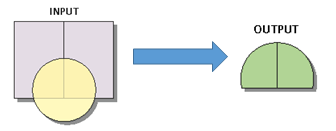
- In the Tools group in the Analysis tab get the Pairwise Intersect (Overlay Features).
- Add two “Good” themes as input
- Call the output Good_temp
- Click RUN
- Repeat the intersection using Good_temp and the other “Good” area (make sure it’s the right one)
- .Call the output Good_areas
- Study the result and represent it using Single Symbol.
NOTE: The tool input makes you believe that you may enter more than two input, but it won’t work.
These polygons represent areas where the three conditions (not flooded, flat slope, suitable land use) are concurrently satisfied. Notice that since this is equivalent to the AND operator and the result is more restricted than if we had used a Union. (HINT: you should get 1014 features)
Task 5 – Putting it all together
We’re almost there!
- Turn off all themes. Put Buffers on top of Good_Areas in the CP and turn on and off Buffers several times to get an idea of what’s going to happen next.
We need to “Erase” Buffers from Good_Areas. Do you remember what the buffers stand for? Therefore, we’re going to use the buffers as “erasers” to remove the areas too close to roads and water from the good areas. The ERASE function does the opposite to CLIP. It uses one polygon feature to erase objects from another theme. Everything inside the Erase polygon will be eliminated leaving only what is outside of the erase polygon (again, opposite to Clip).
- In the Analysis tab click the red Tools icon (this function is NOT in the Tools group menu).
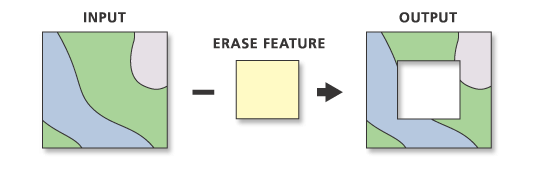
- On top of the Geoprocessing pane that opens on the right click on Toolboxes and go to Analysis Tools > Overlay > Erase
- Input Features Good_areas.
- Erase Features (i.e. the eraser) Buffers.
- For the output call it “All_areas”.
- Click RUN
Take a look at the resulting theme (All_areas) and compare it with Good_areas. Can you explain the differences? These are all the areas that meet all the requirements. You’ll notice that some areas are too tiny, and that other areas are made up of multiple polygons (probably different land use types). We have to “Dissolve” those extra lines in order to calculate the correct area of each parcel (a parcel is a contiguous piece of land).
(Hint: you should have now 503 features)
- From the Toolboxes go to Data Management > Generalization > Dissolve
- Input Feature All_areas
- Output Feature Final
- Under Dissolve Field make sure nothing is selected
- VERY IMPORTANT: At the bottom of the Dissolve pane uncheck the box where it says Create multipart features (we want individual polygons, not multipart). Click RUN.
Study the new theme and open its attribute table and see how many parcels are available.
Question 9. How many parcels (total) are available?
(HINT 1: between 500-600)
(HINT 2: if you got only 1 item, you forgot to uncheck the “Create multipart features” tick box)
- In the attribute table of Final notice the area values for each parcel in the last column called Shape_Area. These values are in square meters (meter is the original map unit for these themes). This is a property of GeoDB, areas and lengths ARE calculated automatically, unlike in Shapefiles.
You need to select only the parcels larger than ______ acres (see requirements at beginning of part 2).
We could do a unit transformation now (from square meters to acres), but let’s learn another method.
- Add a new Field to Final’s table. Make it Double and call it Acres.
- Make sure there’s nothing selected, and then right click on the column Acres and choose Calculate Geometry.
- Property should be Area
- Area Units: pick US Survey Acres and click OK
- We shouldn’t have to pick Coordinate System as these themes are already in MASPCS83 meters (see theme descriptions)
- Click OK
- Select parcels larger than your area requirement and export them as Best_Parcels.
Question 10. How many parcels meet the minimum area requirement? (Hint: <10)
- In the attribute table of Best_parcels add an integer column called “Parcel”
- In the Parcel column, name the parcels with sequential numbers (1, 2, 3, 4…)
- Right click on the heading of the other columns (Shape, OID, length, area, etc.) and choose “Hide field”. Leave only Parcel and Acres columns visible
- Save your changes to the table
Finally, prepare a suitable layout with ONLY the parcels that satisfy ALL requirements (Best_parcels), add the South Hadley town outline, major roads, hydro arcs and hydro poly. You may use, or not, the background map (your choice, but I think this time it looks nice). Again, make the best map that you can make and make me proud. Before you finish the layout, do the following changes to it:
- Label the parcels with the corresponding labels created in the previous step (#21).
- Click on the theme in the CP then click the labeling tab on top and choose the corresponding Field (Parcel)
- Insert the attribute table in the layout
- In the CP, select the theme you want to use (Best_parcels) to create the table
- On the Insert tab, in the Map Surrounds group, click Table Frame
- On the layout, draw a rectangle to define the limits of the table frame
- If the Table Frame is empty: remember to select (highlight) the theme in the CP before drawing the frame
- If nothing, or no rows, is shown in the table frame, maybe only the column headings, double click on the table frame inserted in the layout and in the “Element” pane on the right, under SourceTable make sure that Final_Parcels is selected and/or SourceQuery select “All rows”
- If you see a red symbol […] it means that it’s not showing the full table, expand the table
- Place the table in a suitable position in the map (it may go inside the map, near the parcels or just outside next to the legend, etc.
- Save layout as PDF.
Question 11. Upload map layout in PDF to Canvas as Yourname_Ex6_part2.pdf.
Question 12. Create a cartographic model for part 2. Add a title and your name, and save it as PDF or graphic format (make sure I can read it). Save as Yourname_Ex6_cartoModel2.pdf. Upload to Canvas.
HINT: remember to list only the themes you actually used for the analysis, the procedures, and the child themes. Use colors/shape consistently and make sure you connect the boxes correctly.