Exercise 3 – Processing and cost surface
Raster processing and cost surface analysis
Contents
- Part 1: Resampling and combination of rasters
- Objective: To merge two DEMS with different resolutions
- Part 2: Filtering Rasters
- Objective: To correct errors in the production of a DEM through the use of filters
- Part 3: Cost Surface
- Objective: To create a cost surface for locating optimal places for construction.
Part 1: Resampling and combination of rasters
Adapted from Bolstad & Manson – Resources
We often obtain DEM data with various errors, a cell size different that we wish to have, or at different resolutions for different parts of our study areas. We use raster operations to improve our DEM data.
In this part, we will combine data of two different resolutions into a mosaic. We often have data from various sources. For example, DEMs at 30m and 10m are appropriate to represent the United States in its entirety, while we use DEMs with a 3m resolution for smaller areas and projects needing finer resolutions.
Task 1 – Study the data
Our first task will be combining the valley3 (3-meter cell size) and valley9 (9-meter cell size) DEMs. We want to use the higher resolution data where it has been collected and use the lower resolution data elsewhere.
This data is from a section around the flood plain of Root river, Minnesotta.
- Create a new project and add both the valley3 and valley9 DEMs to an empty Map Frame.
- Study these 2 DEMs (use a suitable elevation palette) and observed the differences in resolutions. Verify cell sizes for both of them
- Calculate Hillshade for both data sets: Spatial Analyst Tools > Surface > Hillshade.
- Use the default settings for azimuth/altitude and check Model shadows)
Inspect these hillshades and note the enhanced detail with the 3m DEM. Note in particular the greater definition of the small streams and stream banks.
- Remove, or turn off, the two hillshades from the data view to reduce clutter, they were only used for visualization. We can use the raster calculator to join these two data sets.
We want to use the detailed valley3 data where we have it, and the coarser valley9 data everywhere else.
Task 2 – Resampling
To avoid unforeseen results, we should first convert our data sets to a common resolution, in this case, resampling the 9 meter data down to the 3 meter cell size. This does not make the 9 meter data better but it allows us to combine them with the 3 meter data. (this is contrary to what I told you in class, but heck, let’s do it anyway)
- Let’s Resample: Data Management Tools > Raster > Raster Processing > Resample
- Input Raster: valley9
- Output Raster: valley9to3
- Output Cell Size: same as valley3 (X = 3 Y = 3)
- Resampling Technique: Bilinear (click the blue “i” next to Resampling Technique to learn about these methods)
- After the resampling, examine the valley9to_3 dataset and verify that it has a 3 meter resolution.
Question 1 – What are the number of rows and columns for both valley 9 and valley9to3?
valley9: rows_________ columns ___________
valley9to3: rows_________ columns ___________
Task 3 – Combining rasters
We can now combine the two data sets. There are many ways to combine data, but one way is with two raster functions: IsNull and Con. These functions compare every cell.
IsNull checks if a raster cell at a given location is ‘Null’. IsNull will return ‘True’ if the value is Null and ‘False’ if the cell has a value.
The Con function takes three values: 1- a true/false test; 2- the value to assign to an output if the test is true; and 3- the value to assign if the test is false.
- Using the Raster calculator Spatial Analyst Tools > Map Algebra > Raster Calculator
NOTE: Be careful to type the following expression as given because the operators are case sensitive (e.g., “con” is different from “Con”). The Raster Calculator is a rather rigid parser. It is easy to add or remove extra spaces and other minor syntax errors (like commas!) that will keep your expression from executing. Try to pick the operators and data from the Tools or Raster windows (when possible) and enter data via the keyboard only when necessary.
Don’t give up if you get an error, keep trying, checking on spaces and commas.
- Input Function: Con( IsNull(“valley3”), “valley9to3”, “valley3”) (Don’t forget the commas!)
- Output raster: combinedDEM
This function first tests if the cell of valley3 is Null. This is true everywhere in our study area outside the data region of valley3. When the value is Null, the con function assigns the value found in Valley9to3 to the cell in the output dataset. When the value is not Null, the con function assigns the value found in valley3.
- Examine combinedDEM raster. Compute and inspect its hillshade (choose a suitable output name) and verify that it has the higher detail contributed by valley3.
Now you’ll make one nice layout:
- Zoom to the extent of the DEM
- Choose a suitable “elevation” palette for combinedDEM
- Symbology: “Stretch”
- Stretch Type: Standard Deviation
- Number of standard deviations 1.5)
- Add the hillshade you made in #8, making it semi-transparent (50-60%) over the combinedDEM elevation data.
- Create a complete Layout
- add a reasonable title/description (e.g. Combined DEM – flood plain of Root river, Minnesotta)
- your name,
- legend,
- north arrow,
- scale bar,
- and grid.
- Export the map as a .pdf and upload to Canvas.
Question 2. Upload your layout to Canvas as PDF. Remember to name your file with your name (e.g. ex3_q2_yourname)
Part 2 – Filtering Rasters
Adapted from Bolstad & Manson – Resources
Now we’ll look at another way to fix DEMs with errors. We’ll now introduce “filtering” as a tool to fix “noisy” data. This is often used with interpolated surfaces, particularly LiDAR data, and similar tools are used near edges for mosaicked DEMs and other continuous surfaces.
Task 1 – Detecting errors in DEM
- Add a new empty Map Frame to your project or start a new project.
- Load the DEM dataset, Shasta, and calculate a hillshade surface for this.
- Output Shasta_Hillshade
- Leave the Azimuth as is,
- set the Altitude to 25, and
- check the Model Shadows box.
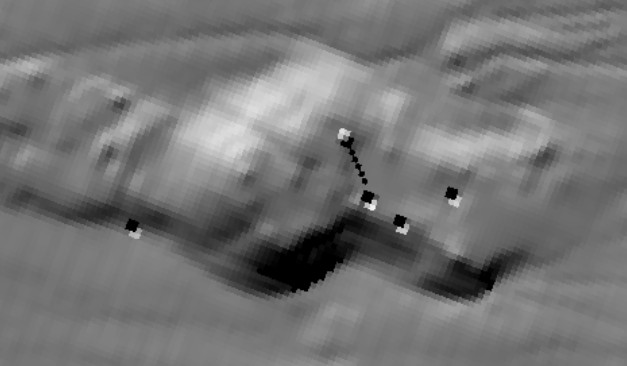
Inspect (zoom in/out/pan) the output hillshaded layer and notice some odd details. There are data “spikes” that look like white squares with a thin shadow to the southeast. There are also “pits” that look like darker squares with a white “edge” on the southeast. (see figure).
- Repeat the hillshading and this time don’t tick the “Model shadows” box and compare the results, specially around those strange places (this is just for you to understand what that box does)
These are artifacts of the data generation and/or hiccups of the data collection process. How do we remove these issues? We can use a neighborhood to identify and get rid of these speckles.
- Apply a low-pass filter to the Shasta DEM (not the Hillshade) Spatial Analyst Tools > Neighborhood > Filter
- Input raster: Shasta (NOT the hillshade!)
- Output raster: Shasta_low
- Filter type: Low pass (click the blue “i” to learn about this)
- Leave Ignore NoData in calculations checked and Run the filter.
Note: Low pass is the same as passing a 3×3 neighborhood statistics with the “Mean” function.
- Calculate a hillshade for this new layer using the default parameters and do not Model shadows.
Inspect the output, looking at the areas that have previously had spikes and pits (see below). The ‘after’ image shows a reduction in the severity of spikes and pits, although they are still visible.
We could stop here and just accept the filtered data layer. But if we look carefully at the filtered and unfiltered hillshade, we see there is cost for filtering. We lose some of the fine detail, apparent in the image of the unfiltered hillshade compared to the filtered hillshade.
We’d like to keep both fine detail and remove errors. We can do that!
Task 2 – Further refinement
First, we will subtract the filtered DEM layer from the original Shasta layer. Remember to not accidentally use a hillshade layer (hillshades are used for visual reference and seldom for analysis):
- Go to Raster Calculator
- Use the formula: “shasta” – “shasta_low” in the Raster Calculator (shasta minus shasta_low)
- Name the output Difference. Then Run.
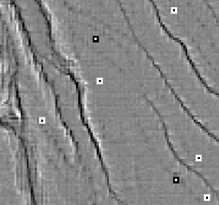
A zoomed-in version of Difference demonstrates the largest differences around the spikes and pits, seen as squares of contrasting shades (see figure). Click around the raster to verify that most of the area contains very little difference (around 0) except at those black & white pixels where the differences are significantly higher.
We can then replace the cells where the difference is ‘large’ and leave the rest unchanged. Large is a relative term, but after a few trials and looking at the difference histogram, a threshold of about 15 works well.
Note: Right click on Difference in the CP and choose Create Chart\Histogram, select Band_1 as Variables. Notice the Average value (most values are near 0). Close the Chart properties window and look at the histogram, use the magnifying glass to zoom in and notice that values different from 0 are within +-10.
We want to replace the value in the shasta image when the difference compared to the filtered Shasta_lo image is greater than 15 meters. Otherwise, we do not change the shasta value. This means only messy data is replaced and good data is left alone with no degradation from the filter.
- Go to the raster calculator and apply the following function:
Con( Abs(“Difference”) > 15 ,”shasta_low”, “shasta”)
- Name the output smoothed.
This equation checks if the absolute value of the difference is greater than 15, we write the filtered Shasta_low value to the output, otherwise, we write the original shasta value.
Question 3. What are the lowest/highest values of elevation in “Smoothed”?
Just for fun: Compare them to the high/low of the original Shasta.
Just for fun 2: Check the Histogram of smoothed.
We can verify that this operation is helpful by viewing the hillshade of the output raster smoothed (again using default parameters and not modeling shadows). Compared to the original and filtered images, we have removed most of the speckles but maintained the details.
We could repeat the filter, average, create difference, and apply Con function. It would lead to an improved surface, and we would do this if the noise had significant effect on the project and accuracy.
Finally, you’ll make one nice layout
- Zoom to the extent of the DEM
- Calculate a hillshade of the smoothed raster, name it something like HillSmooth.
- Azimuth: 315 (default)
- Altitude: 35 degrees
- Check Model Shadows
- Choose a suitable “elevation” palette for the DEM (symbology stretch type for smoothed layer is set to Standard Deviation with n=1.5.)
- Add HillSmooth, making it semi-transparent (50-60%) over the smoothed elevation data (Shasta_low).
- Create a complete Layout
- add a reasonable title/description (e.g. Hillshade & Elevation Mount Shasta, Northern California”)
- your name,
- legend,
- north arrow,
- scale bar,
- and grid.
- Export the map as a .pdf and upload to Canvas.
Question 4. Upload map to Canvas (name the file with your name e.g. “ex3_q4_yourname.pdf”
Part 3 – Cost surface analysis
Adapted from Bolstad & Manson – Resources
We will create a cost surface for locating optimal places for construction. Our cost surface will depend on slope and distance to existing roads. In our problem, we will assign road construction cost of $25 per meter of road required. We have a vector data layer of roads digitized from USGS maps and we will use grid functions to convert this to a cost data layer.
Slope also affects cost. Roads on steeper terrain are more expensive. The cost is nonlinear, meaning the cost increases slowly for low slopes, then more rapidly at steeper slopes. It is more than 10 times as expensive to build a road on a 20% slope than a 2% slope and impossible to build over a steep threshold.
We provide a roads data layer DuluthNorthRoads.shp and a DEM data layer (DulNorthDEM) from the northern suburbs of Duluth, Minnesota.
You will calculate a slope cost using the raster calculator. We will create a simple cost model using a couple of formulas. A more accurate analysis would require much more complicated processing, but our approach gives you the general idea while gaining practice with raster calculations.
We will then calculate a distance cost with the distance to the nearest road. A total cost will be made, by adding both the slope cost and distance cost layers. Finally, we wish to apply an upper threshold of $25,000 to consider only those areas that are within our budget.
Task 1 – Slope cost surface
- Start a new project and add the DEM DulNorthDEM
- Calculate the percent slope Spatial Analyst Tools > Surface > Slope
- Input raster: DulNorthDEM.tif
- Output raster: DulNorth_Slope
- Output measurement: Percent rise
- Method: Planar
- Z factor: 1
Study the result slope raster: What are the slopes values (highest and lowest values). Do they appear reasonable?
Question 5. What is the highest slope value in percent?
Hint: you might want to stretch the symbology or get the stats of the layer
- Next, we will determine the cost of building on slopes using the raster calculator
- Input the equation: Exp(“DulNorth_Slope” * 0.2)
- Output raster slope_exp
This applies an exponential function to each cell value and saves it in the output raster slope_exp. This is done to scale the slope value to a nonlinear (exponential) value. This formula just makes the values increase exponentially as the slope values increase (don’t pay too much attention on the formula).
Hint: Exp (X * 0.2) is the same as e(X * 0.2) where e is the natural log base ~2.718.
If you inspect the output, you’ll note it has a lowest value of 1, and a very large highest value, something like 2.38 x 10²². The image will appear almost solid black. We need to shave off the highest values, as it can cause functions to calculate too large a value later. We want to place a ceiling on values over 300.
- We use the Con function in the Raster Calculator, applying the condition: Con ((“slope_exp”) > 300, 300, “slope_exp”)
- Call the output slope_exp300
Recall that the Con function takes these inputs: Con (condition, value if condition is true, value if condition is false)
- Study the results. Use a symbology that shows the different values for the different slopes
(maybe use Classify with 15-10 classes)
We will now calculate slope cost. We choose a formula that the cost is $1000 times the slope factor, starting at 0 extra dollars for a flat (0 slope) surface.
- Using the raster calculator, derive a slopecost raster. Apply the formula “slope_exp300” * 1000 – 1000
- Name the output raster slopecost.
Any idea why the final “-1000“ at the end of the formula?
Hint: When we calculated exponential, what is the exp(0)?
Hint 2: check the lowest value of Slope_exp300 in the CP
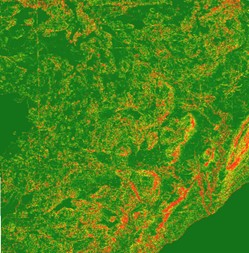
- Assign a suitable symbology (see figure)
- Specify the Min-Max stretch type, with custom statistics, and specified 0 Min, 25000 Max in the lower options of the Symbology pane
You should have something that looks like the image when applying a max-min symbology over the 0 – $25,000 range to your slope cost (your choice of palette may be different).
Task 2 –Distance from road cost surface
Now, we will calculate distance from road cost.
- Add the DuluthNorthRoads.shp vector layer to your map (if you don’t have it already).
- Calculate the distance from roads raster with the Euclidean Distance tool Spatial Analyst Tool > Distance > Distance Allocation.
- Input: DuluthNorthRoads
- Output Distance Accumulation Raster: Distance (NOTE: not “Distance Allocation”)
- Distance Method: Planar
- On top of the dialog click on Environments
- Open Raster Analysis and choose cell size: 3 (the cell size of our slope cost layer; please verify that this is so)
- Leave other values as default and RUN
Hint: Disregard (and get rid of) of any layer called “Distanc_Dulu1” or something like that in the CP, we only want “Distance”
Hint 2: Click on multiple places on Distance and notice how the numbers increase as you move away from the roads. It should be “0” right on the roads up to a maximum of 6426+ meters.
- Now we will Calculate distance cost using Raster Calculator by assigning a cost of $25 per meter away from a road
- Enter formula: “Distance” *25
- Output: Distance_cost
Hint: You should get a layer with range of values approximately from 0 to about 160,660
Task 3 –Total cost
- In the Raster calculator add (as in summation) Distance_cost plus Slope_cost, to calculate a total cost surface Total_cost
Hint: You should get a layer with range of values approximately from 0 to about 345,425
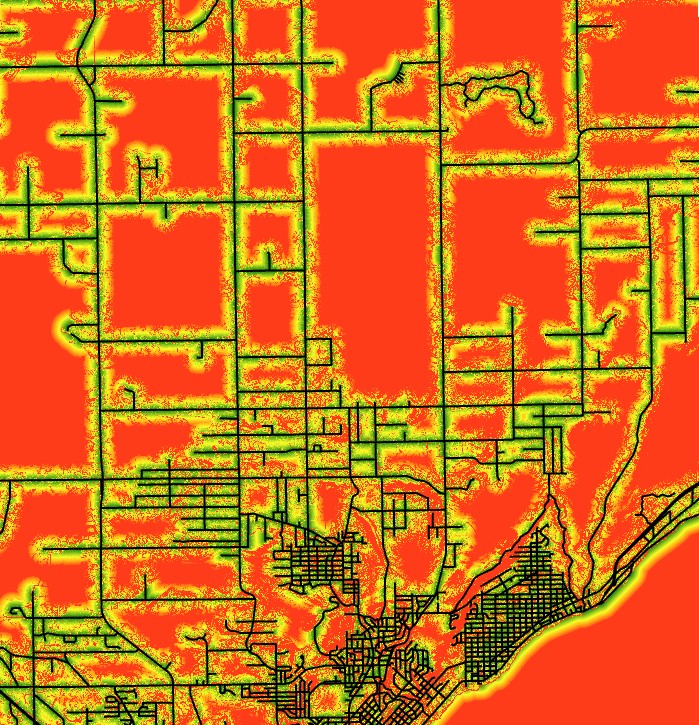
The highest values result from the steepest slopes. It is a long-tailed distribution, meaning there are a few very high values.
- Check the Histogram of Total_cost to observe this distribution.
This skews symbology visualization, and obscures much of the variation. If we cut off the stretch at 10,000 then we show more detail.
- In the symbology pane for Total_cost use
- Primary symbology: Stretch
- Stretch type: Min max
- Statistics: Custom
- Min: 0
- Max: 10,000
Note the drop-off near the roads at this stretch, with a threshold above 10,000 reached, due to the distance function. Your result should look like the image (depending on your color scheme, this is using a green-red (called “Condition Number”
Task 4 – Reclassification
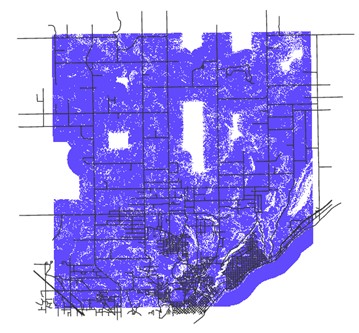
We’re now going to reclassify these values into a smaller number of classes. We wish to consider only areas where the total costs are below $25,000. We need to create a mask, with 1 where the total cost is below $25,000, and NoData where the total cost is above $25,000 (refer to the explanation at the beginning of part 3 to understand this objective).
- Go to Spatial Analyst Tools > Reclass > Reclassify
- Input Raster: total_cost
- Reclass field: VALUE
- Classify just 2 classes using 25000 as the upper value for the first class
- Assign a value to 1 to the lowest class and NODATA to everything above 25000 (Make sure to hit ENTER after inputting a new value)
- Output Raster: Classmask
- Click Run to execute the function
The reclassify operation should result in a mask layer called classmask that looks something like the figure.
Question 6. How many cells of Classmask have a value of less than $25000?
(Hint: value 1; careful when typing the number)
(Hint 2: >26 million)
- Now use the raster calculator to multiply the mask (classmask) by the total cost (Total_cost) layer.
- Call the output Final_Cost.
This final cost layer shows you the best places for construction according to our criteria of proximity to roads and low slope and with a cost of less than $25,000 per 10 square meters (actually 9, cell size is 3m). You’d provide this map to the person(s) in charge of making the final decision of where to build.