Exercise 4b – Sampling (stratified)
Stratified Random Sampling (Optional)
Adapted from Bolstad & Manson – Resources
Part 1: Sampling and Interpolation
Please read the introduction to this exercise in Exercise 4 – Sampling
Task 1 – Preparing data
- Create a new project and add the DEM chirdem. It displays a region in southeast Arizona.
- Apply a symbology scheme to highlight the topography:
- Primary symbology: Stretch
- Stretch type: Standard Deviation
- Number of std dev 1.5
- Gamma = 0.5
- Make a hillshade of chirdem and drape it over the DEM. Make it 50% transparent hillshade
Tasks 2 & 3 are in Exercise 4 – Sampling
Task 4 – Stratified Random Sampling of a Raster Layer
NOTE: This set of instructions has not been revised as thoroughly as the main Ex4. Instructions are more limited and there might be some errors, but you know enough, by now, to figure things out.
Sometimes we want to vary the sampling frequency across a map. Here, we’ll place more samples in areas that are steeper in order to better capture surface variability. First, we’ll create three zones, or strata, and then we’ll assign samples based on the strata. Samples will be assigned proportional to both the area and relative steepness of the zone. More samples will be in the steeper strata zones.
Our strata boundaries will be based on slope, filtered to create larger, more generalized areas.
- Create a new “Stratified” map.
- Calculate the slope of chirdem in degrees
a) Input raster: chirdem
b) Output raster: slope_deg
c) Output measurement: Degree
d) Method: Planar
e) Z-Factor: 1
Hint: The highest slope should be 71.8 degrees
Now to create strata zones. Usually, you stratify for some threshold of an attribute (e.g., slopes above which you can’t build or elevations where you’re unlikely to find a resource of interest).
- Reclassify slope_deg into three classes:
a. 1: 0-1.5
b. 2: 1.5-18
c. 3 : >18 - Name your output RCSclope.
Now we want to reduce some of the “speckle” in the reclassed slope layer (RCSlope). If we place a sample point on single outlier pixels or long thin stretches, our sample will not be stratified well. This is a good opportunity to practice smoothing.
- Use Spatial Analyst Tools > Generalization > Majority Filter
a) Input raster: RCSlope
b) Output raster: Majorit_RCSc1
c) Number of neighbors to use: Four
d) Replacement threshold: Half
e) Click Run
Notice how the small speckles are removed in the majority filter output. Verify this by drawing the majority raster on top of the reclassed slope and choosing a similar palette for both rasters, RCSlope and Majorit_RCSc1, and turning the top one off and on.
Still, some of the long, thin reaches of valleys remain. This isn’t a great issue, but in many cases, we want very general strata, so we’ll apply another step. To generalize further and reduce the number of isolated blobs, you may apply a median filter, a kind of focal statistic.
- Go to Spatial Analyst Tools>Neighborhood>Focal Statistics.
- Input raster: Majorit_RCSc1
- Output raster: FocalSt_Majo1
- Neighborhood: Rectangle
- Width: 31
- Height: 31
- Units type: Cell
- Statistics type: Majority
- Check Ignore NoData in calculations to On
Notice how this substantially generalizes the data by removing the long thin features (in particular). Note that the results of Focal Statistics are not shown here.
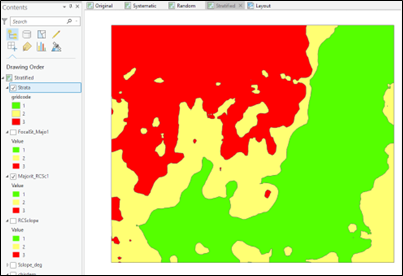
- Convert the final FocalSt_Majo1 raster to a vector layer Conversion Tools > From Raster > Raster to Polygon.
- Input raster: FocalSt_Majo1
- Field: Value
- Output polygon features: Strata
- Check Simplify polygons to On
- Keep Create multipart features Off
- Leave Maximum vertices per polygon feature blank
- Inspect the layer’s attribute table. Use Unique values Symbology (Field “gridcode”) like in the picture. There are columns for Shape_Length and Shape_Area. They are in the projection units, meters and square meters.
Now we must create stratified sampling points. Read this and the next two pages before you try to start pushing buttons, as you need to understand the process!
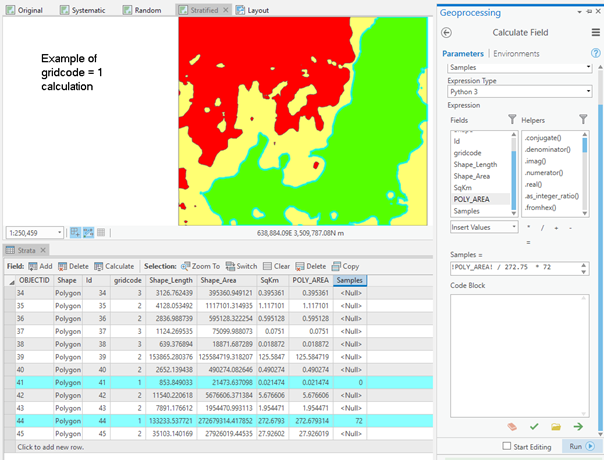
We would like to have a total of approximately 1000 sample points, with 10 times as many sample points in the steep areas (red) as in the flat ones (green). We’d like three times as many samples in the intermediate areas (yellow) as the flat areas, as seen in the image.
The weightings are 10 for the steep areas, 3 for the intermediate areas, and 1 for the flat areas.
The sum of our weights is 10 + 3 + 1 = 14, so that means:
- 10/14ths of our samples should be in the steep areas,
- 3/14ths in the intermediate, and
- 1/14th in the flat areas.
So, our samples should be distributed as
- 1000 * 10/14 = 714 samples in the steep areas (strata; gridcode = 3),
- 1000 * 3/14 = 214 samples in the intermediate (strata; gridcode = 2),
- 1000 * 1/14 = 72 samples in the flat (strata; gridcode= 1).
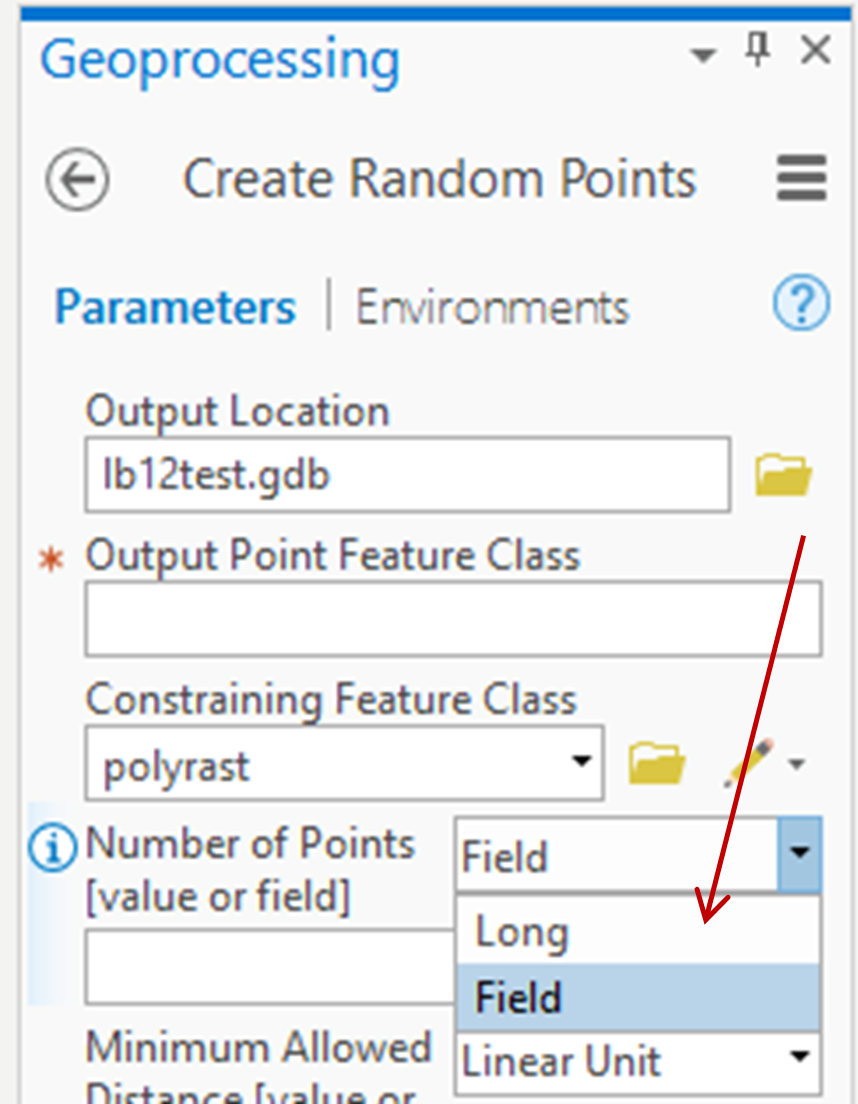
You might have noticed when we created a random sample in previous exercises, there was an option to set the number of points assigned to a polygon based on a field value (see figure).
There are several polygons for each gridcode. It makes sense to distribute the samples proportionally to the area of each polygon.
We weight the assignment based on a polygon’s area compared to the total area for that strata’s gridcode.
For example, in the layer above the largest polygon in gridcode = 3 has an area of 255.5 square kilometers. The total area for gridcode = 3 is 272.3 square kilometers. So, this largest polygon should get 714 * 255.5/272.3 = 702 sample points.
We multiply the number of points for that strata (gridcode category) by the polygon area and divide it by the total area of that strata.
How do we get the total strata area in square kilometers? Remember, by…
- Open the attribute table for the data layer
- Create a new float or double column called SqKm
- Calculate the area into this new column (field calculator on the new column, SqKm)
Square meters can be converted to square kilometers by dividing the existing Shape_Area by 1,000,000.
You can use the geoprocessing tool Calculate Geometry Attributes (or right in the attribute table) to calculate the area as well.
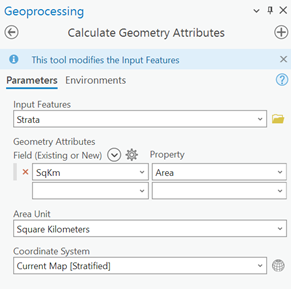
- Calculate the areas in the Data Management Tools > Features > Calculate Geometry Attributes
- Input Features: Strata
- Geometry Attributes:
- Field: SqKm
- Property: Area
- Area Unit: Square Kilometers
- Coordinate System: Current map [Stratified]
Run the tool. Note it adds a new attribute named SqKm with calculated square kilometers. Review the strata layer polygon table. Note, that you have a gridcode, from 1 to 3 (flat to steep), and the area for every polygon.
We need to find the total polygon area for each of the three categories so we can apply our strata assignment formula.
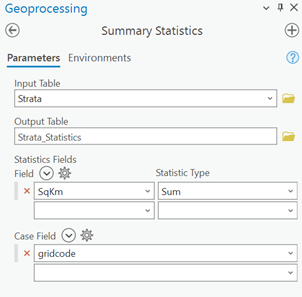
- We do this with the Summary Statistics tool (see figure).
- Input table: Strata
- Output table: Strata_Stastics
- Field: SqKm
- Statistic type: Sum
- Case Field: gridcode
The case field tells the tools to sum in every case where the gridcode is the same (i.e., sum all the areas for gridcode 1, do a separate sum for gridcode 2, and another for gridcode 3).
In my case I have:
- An area of 273.43 square kilometers for the flat (gridcode = 1) strata. I want 72 sample points in this strata.
- An area of 181.09 square kilometers for the intermediate (gridcode = 2) strata. I want 214 sample points in this strata.
- An area of 218.49 square kilometers for the steep (gridcode = 3) strata. I want 714 sample points in this strata.
Your numbers may be slightly different but should be within a few percentages of these areas.
Write down your summary areas for all three of your classes; you will need them later.
We now want to calculate the number of samples per polygon.
Samples per polygon may be computed many ways, but we’ll:
- Open the strata layer attribute table and add a new long integer field, call it samples. See if you have “unsaved” edits, if so save them. If not, save your Project and close ArcGIS Pro and reopen it, and your Project.
- Select all polygons for a given strata (gridcode). You’ve done this before, as a quick reminder, you start with the select by attributes tool.
- Use the field calculator to calculate a value into the samples field. Multiply the total number of points for this strata by the area of the polygon divided by the total area of the strata. For example: gridcode = 3 will have the formula 714 * SqKm / 218.49
- Repeat this calculation process for strata 1 and 2, substituting the strata area and total points appropriate for each strata. To repeat, our general formula is (Total sample points for that strata) * SqKm/(Total area of strata)
For our example so far, the formulas are:
- Gridcode = 1: 72 * SqKm/273.43
- Gridcode = 2: 214 * SqKm/181.09
- Gridcode = 3: 714 * SqKm/218.49
Note that your numbers for the strata area and relative number of samples may be different than those here, but they should be close.
When you have finished with the last sample number calculation, be sure to clear all selected features.
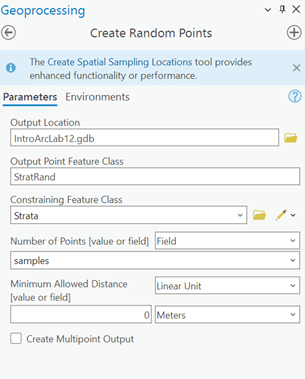
Now it is time to create stratified random points. We use the same Create Random Points tool as before.
- Go to Data Management Tools > Sampling > Create Random Points.
- Output location: yourGeodatabase.gdb
- Output Point Feature Class: StratRand
- Constraining Feature Class: Strata
- Number of Points: Field; samples
- Minimum Allowed Distance: Linear Unit; 0 Meters
- Leave Create Multipoint Output Off
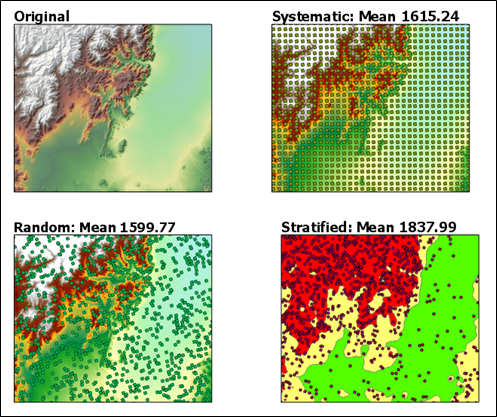
As with the other two Maps, calculate the mean elevation with the Extract Values to Points tool, and include the mean in the label for the stratified Map on your Layout.
Add the stratified random sample layer polygon layer and the points to your layout. Your layout should appear like the figure below. Add a north arrow, legend, title, your name, and scale bar, create a PDF, and turn it in.