Exercise 4 – Sampling, interpolation & MCE
Sampling, interpolation & MCE-WLC
Contents
- Part 1: Sampling methods
- Objective: To learn about systematic, stratified, and random sampling
- Part 2: Interpolation methods revisited
- Objective: To learn about Thiessen polygons & the geostatistical wizard
- Part 3: MCE – WLC
- Objective:To perform a multicriteria evaluation of the dataset from exercise 1 using a weighted linear combination approach
Adapted from Bolstad & Manson – Resources
Part 1: Sampling methods
GIS analysis often requires generating sample points. These points can denote locations to measure in the field or can be used to characterize large raster layers. In the first part of this exercise, we’ll create sample points, and use them to extract data from a DEM.
We’ll apply both systematic and random sampling. We’ll also develop and apply a stratification layer, because sometimes you want to stratify your sample, which means you wish to increase sample density in some portion of your area, using a map of zones or strata (this last part is optional).
Task 1 – Preparing data
- Create a new project and add the DEM chirdem. It displays a region in southeast Arizona.
- Apply a symbology scheme to highlight the topography:
- Primary symbology: Stretch
- Stretch type: Standard Deviation
- Number of std dev 1.5
- Gamma = 0.5
- Make a hillshade of chirdem. Make it 50% transparent and drape it over the DEM.
Task 2 – Systematic Sampling
We’ll first create a systematic (grid) sample and then we will sample the elevation surface.
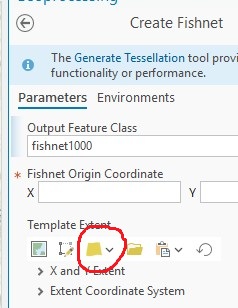
- Open Data Management Tools > Sampling > Create Fishnet
- Output Feature Class: fishnet1000
- For Template Extent: Click the folder icon and select chirdem from your files (see image); remember that “extent” defines the min-max coordinates in X and Y directions, here we want this to have the same extent of the DEM, otherwise it can “grow” beyond its limits. When you match the extent to the DEM note how Origin Coordinates and extents should auto fill
- Cell Size Width: 833
- Cell Size Height: 833 (you could create a non-square fishnet; try it for fun)
- Check Create Label Points On
- Leave other values default and click Run to execute.
- After creating the fishnet and labels, remove (or turn off, we don’t need it) the fishnet1000 from the CP, but keep the label points layer named fishnet1000_label.
We now need to assign the elevation values to the points.
- Go to Spatial Analyst Tools > Extraction > Extract Values to Points
- Input point features: fishnet1000_label
- Input raster: chirdem
- Output point features: Extract_fishnet1
- Check Interpolate values at … to On
- Check Append all input raster … to On. Click Run
Once we run this tool, each point in the output will have the elevation value of the DEM at that location.
- Remove (or turn off) fishnet1000_label from the CP and open the attribute table of Extract_fishnet1 and verify there is a column named RASTERVALU.
- Right click on the RASTERVALU column and click explore statistics.
Question 1. How many points there are in Extract_fishnet1?
Question 2. What is the mean elevation with systematic sampling?
Task 3 – Random Sampling
We’ll now generate a set of random sampling points with the Create Random Points tool.
- Go to Data Management Tools > Sampling > Create Random Points.
- Output location: yourdefaultGDB (this is a strange query or a software bug, in other tools, the output always goes to the default GeoDB without having to specify it)
- Output Point Feature Class: random_points
- For Constraining Extent (NOT Constraining Feature Class): Click the folder icon under Constraining Extent and select chirdem from your files.
- Number of Points: Long/1000
- Minimum Allowed Distance: 45 Meters
- Leave all other settings default and click Run
We set the minimum allowed distance value to 45 meters to avoid points in the same cells. The cells are 30 meters wide or about 43 meters on the diagonal (verify this!). If we set all points to be at least 45 meters apart, no two points will fall in the same cell.
- Now sample the elevation values from chirdem dataset as previously, via Extract Values to Points.
- Input point features: random_points
- Input raster: chirdem
- Output point features: Extract_random_1
- Check Interpolate values at … to On
- Check Append all input raster … to On
- Remove, or turn off, the random_points data layer from the CP.
Question 3. How many points there are in Extract_random_1? (you should know this without looking in the attribute table 😉
Question 4. What is the mean elevation with random points?
NOTE: Notice how similar/different are the mean values from the random sample and the systematic sample.
Task 4 – Stratified Random Sampling of a Raster Layer (Optional)
Making a stratified sampling is more elaborate process so the instructions are given in Exercise 4b – Stratified Random Sampling (Optional) and it’s optional (no questions to answer), in case you want to see how it’s done.
Part 2 – Interpolation methods revisited
Adapted from Bolstad & Manson – Resources
Task 1 – Thiessen polygons
- Add a new map (either in your existing project or in a new project) and name the new map Thiessen.
- Change the Map display coordinate system to NAD 1983 (2011) UTM Zone 18N (Projected Coord. Sys.North AmericaZone seriesUTM (NAD 1983)NAD 1983 UTM zone 18N).
NOTE: This is the same UTM zone where MHC is located.
- Add the Excel spreadsheet Ozone.xlsx (you need to go inside the spreadsheet, double click it to see the “sheets” and load the “Sheet1$” table, only one sheet this time).
Study this table and notice that it contains points with ozone concentrations and their corresponding coordinates. These coordinate values are Latitude & Longitude with units in decimal degrees (DD). This is a problem for interpolations, we’ll solve this ahead.
- In the CP, right click on the added table name and choose Create Points From Table >XY Table To Point
- Input Table: Sheet1$
- Output Feature Class: OzGeog
- X Field: SITE_LONGITUDE (Make sure you don’t switch lat-long)
- Y Field: SITE_LATITUDE (Make sure you don’t switch lat-long)
- Leave Coordinate System: GCS_WGS_1984 (this is the coordinate system that the data is in, we don’t change this)
The new layer is projected on the fly to UTM by Arcgis, because of the project’s map coordinates. We want to permanently set to UTM coordinates (UTM is always in meters) by projecting the data set.
- Use Project Tool in Data Management Tools > Projections and Transformations > Project
- Input Dataset: OzGeog
- Output Dataset: OzUTM
- Output Coordinate System: Current Map / NAD 1983 2011 UTM Zone 18N
You can now remove (or turn off) OzGeog and the table from your map.
Display your data with graduated symbols (Ozone field), and a topographic basemap background.
The spreadsheet data you loaded in OzGeog and OzUTM contains data on ozone levels, a toxic chemical that may reach harmful levels, especially in the summer and in areas with large numbers of internal combustion engines. The ozone column in the data set reports 24-hour average ozone levels. Readings higher than 54 are considered a moderate health risk and readings higher than 70 are damaging to most populations. Readings are made at individual stations, but we’d like to create maps of the concentrations across the whole northeastern U.S. To do this we must interpolate the readings across space.
Question 5. What is the average concentration of Ozone in this dataset?
- Go to Analysis Tools > Proximity > Create Thiessen Polygons.
- Input Features: OzUTM
- Output Feature Class: Oz_Thiessen
- Output Fields: All fields
You should get a set of Thiessen polygons. Study them.
- Color the polygons using graduated colors, in 3 classes according to their ozone levels, using the following classes
- Safe ozone levels (<54) – make it transparent (hollow symbol)
- Warning levels (54 to 71) – represent it yellow
- Damaging levels (> 71) – represent it red
- Make them all semi-transparent (about 30%)
Hint: Right click on the color and use Color Properties to select the transparency level. Or click on the layer in the CP and then go to “Feature Layer” on top panel and change transparency for the whole layer.
Task 2 – Geostatistical Wizard
We will now do an IDW interpolation using a new method.
- Create one new Map labeled IDW
- Add the OzUTM data you used above to the IDW Map.
Several interpolation tools are provided through the Geostatistical Wizard, found in the Analysis tab main ribbon >Workflows section > Geostatistical Wizard icon on the right side of the tool ribbon.
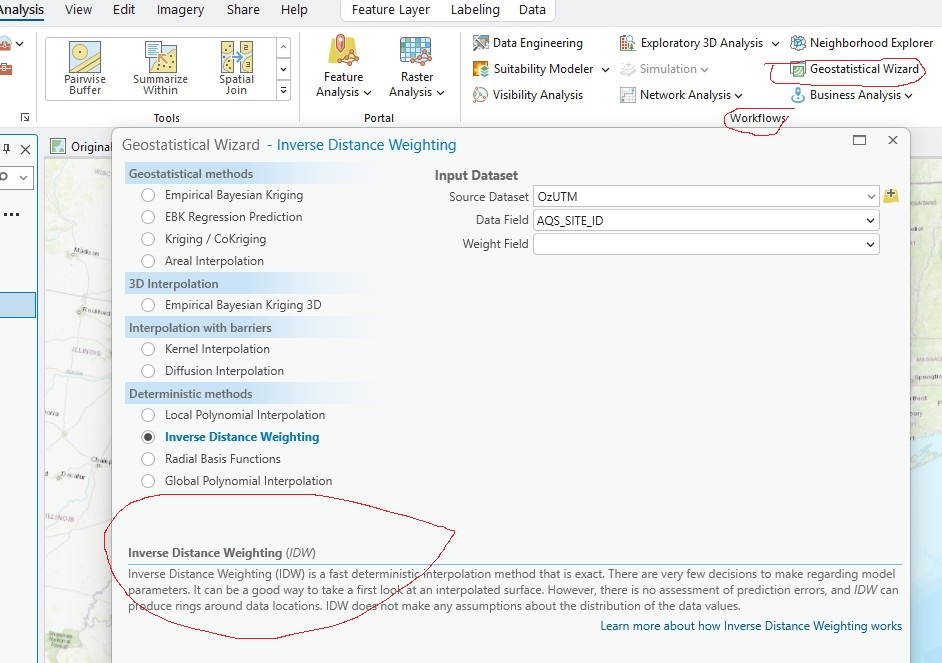
- Start the Geostatistical Wizard and observe the new dialog window. It has radio buttons next to various spatial prediction methods.
As you click each radio button to choose a method, the parameters and description, in the lower part, change. Some of the names are different from the textbook (e.g., the global polynomial method is the same as trend-surface method). Make sure to read the descriptions of the methods in the lower part of the dialog. Some of the methods are grouped within other methods. For example, kernel interpolation is found under Interpolation with barriers.
Task 3 – Inverse Distance Weighting
this method interpolates a raster surface from points using an inverse distance weighted (IDW) technique. You have already done one interpolation with this method using the Spatial Analyst Toolbox. Now we’ll explore this new method.
- For now, select the Inverse Distance Weighting method.
- Source Dataset: OzUTM
- Data Field: Ozone
- Leave Weight Field Blank
- Click Next. You will likely get a warning saying multiple samples exist at the same location. If so, select Use Mean then Next.
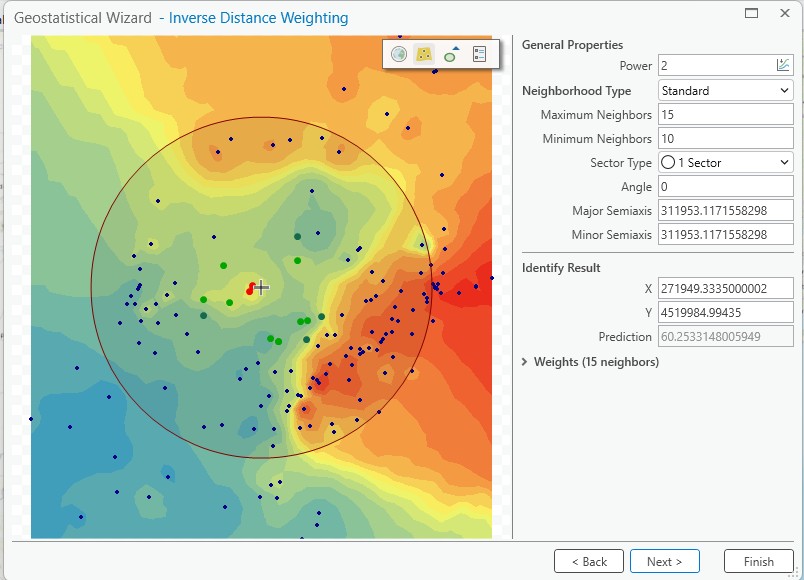
You should see a window similar the figure with a preview interpolation image on the left and a set of parameters on the right. Most should be familiar from lecture & textbook, except perhaps the Sector type and Angle options. These settings allow you to apply the minimum/maximum number of neighbors in a certain direction, rather than the entire surface (for example, 4 sectors would allow 10 points in each of the northeast, northwest, southeast, and southwest quadrants). Sectors often provide better fits when there are underlying local trends, but we’ll ignore this for now.
- Vary the parameters. For example, experiment with powers from 1 to 6, different neighborhood types, and numbers of maximum and minimum neighbors. Observe how it changes the preview surface. You might need to enter the values then click somewhere else in the dialog window for the values to update.
Note: “Power” determines how strong is the influence of nearby know points in the interpolated value.
“The rate at which the weights decrease is dependent on the value of p. If p = 0, there is no decrease with distance, and because each weight is the same, the prediction will be the mean of all the data values in the search neighborhood. As p increases, the weights for distant points decrease rapidly. If the p value is very high, only the immediate surrounding points will influence the prediction.”
– How inverse distance weighted interpolation works
Set the parameters with:
- Power: 1
- Neighborhood Type: Standard
- Maximum Neighbors: 10
- Minimum Neighbors: 4
- Sector Type: 1
- Angle: 0
- Click Next.
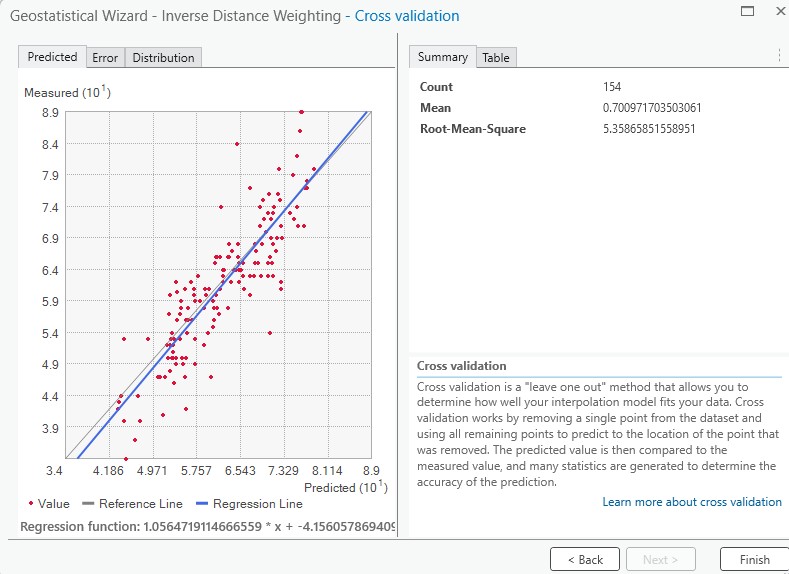
This should show a cross-validation window (see figure).
The panel on the left side of the Cross Validation pane shows the predicted vs. observed values, a regression line through the plot, and a 1:1 reference line. Read about cross validation in the page “Using cross validation to assess interpolation results” from Arcgis Pro help.
You can also click on the Error tab above the window, that shows the error for each measurement, the difference between the point on the plot, and the 1:1 line. The right side of the Cross Validation page shows the cross-validation statistics. Note the RMSE of the cross-validation for this set of parameters.
RMS error (RMSE) is an abbreviation of root mean square. A measure of how well georeferenced points align with real-world geography in spatial data calculations. A low RMS error indicates generally good alignment; a high RMS error indicates a higher probability of stretching or shrinking.
— ESRI HelpQuestion 6. How many records (points) does it show?
Question 7. How many records does the theme actually have?
NOTE: Make sure you understand why those numbers are different. It has to do with the error & prediction calculations.
NOTE 2: Note that the theme created is a vector, not a raster, like the IDW we created with Spatial Analyst Tools in exercise 1. Get the properties in the CP and under Source notice that it says “File Geodatabase Feature Class” (NOT “File Geodatabase Raster”) and, of course, it doesn’t show cell size info.
NOTE 3: If this is not strange enough, also notice that, even though it’s a vector file, it won’t show you an attribute table. You can R-click it and choose Open and it’ll send you back to the Geo Wizard window. You could export this to a raster, if you need to.
- Click on the Back button, and only change the Power parameter to 2. Then click Next again and view the graph and cross-validation RMSE. How have they changed?
- Click Finish and you will see a Method Report, click Ok. This should display an image on the map.
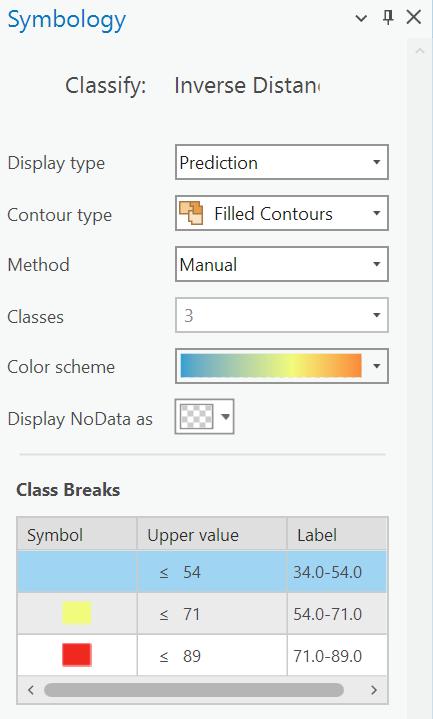
- Open symbology for the theme. Notice that the Display type says “Prediction” and it doesn’t allows to change it.
- Click on the Classes option and set it to 3 (figure).
- Click on the color patches in the Class Breaks table
- Set the first to transparent, with an upper value of 54, the second a yellow/orange with an upper value of 71, and the third class a red color with an upper value of 89 or higher
- Make the second and third classes semi-transparent, with a 30% transparency
Compare this to the Thiessen polygon surface you produced earlier. How similar or different are they?
Just for fun (optional): You can do, on your own, a Spline interpolation using Spatial Analyst Tools and see, again, how similar or different to these, the Spline is.
Part 3 – MCE – WLC
NOTE: Read these instructions for part 3 completely before you start clicking away.
In exercise 1 we did a simple multi criteria evaluation (MCE) to search for best places to establish a solar farm using a Boolean approach. In that case we only considered 2 factors, slope and aspect, which were reclassified according to the criteria selected:
- Slope: less than 5 degrees
- Aspect: South facing slopes 157.5° – 202.5°
The final result of that analysis was a Boolean map called “Good_Areas” that showed areas where both suitable conditions were met.
Study the following cartographic model for exercise 1. The last part of the exercise (Generalization Region Groups) has been removed from the diagram (refer to the instructions of exercise 1 for the full diagram).
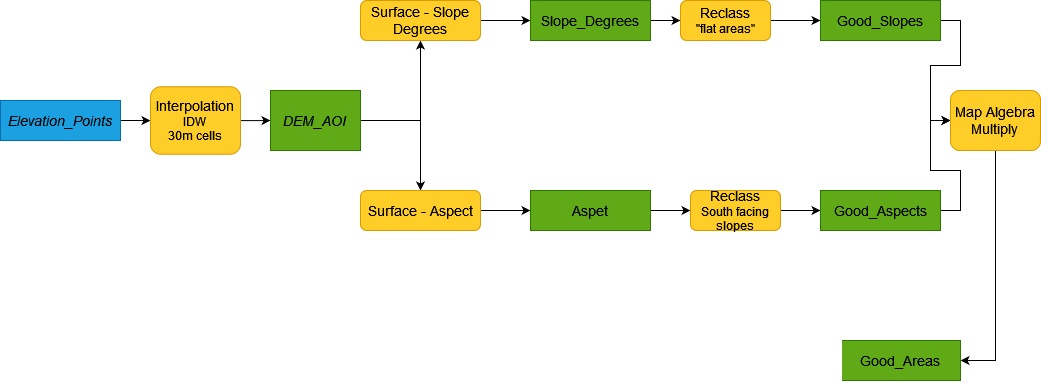
This time we’ll do something similar, even using the same dataset, but instead of a Boolean approach we’ll use a Weighted Linear Combination (WLC) where we’re going to weight the factors giving more importance to one or the other.
Task 0 – Data preparation
We’ll be using the same dataset that you used in Exercise 1. We’ll be using, specifically, the Slope and Aspect rasters that you created, and the final result “Good_Areas”. If you don’t have your project/data for Ex 1, you’ll need to do it, again.
One efficient way to use the data from Ex 1 is by connecting to the \ex1 folder in your X:\ drive
- In the View tab in ArcGIS click the Catalog Pane button
- in the panel on the right, R-click on Folders and choose “Add Folder Connection” to x:\username\ex1
- from now on this folder will now be available in your project and you can add layers from there using this “Folder” connection.
RECOMMENDED (if you still have your Ex1 project): Another way is just to continue working in the same map project you created in Exercise 1 and just insert a new map.
Task 1 – WLC
Your task now is to repeat the analysis following this second cartographic model shown below. You will not get detailed instructions to do this as you should already know how to.
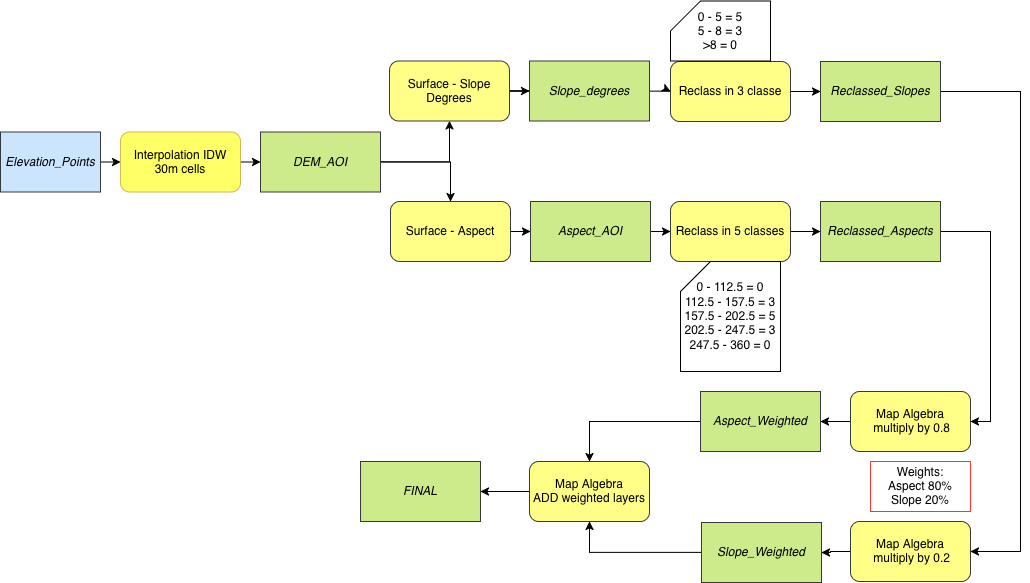
Notice that for the purpose of standardizing these two factors now we’re reclassifying them to a suitability scale of 0 (worst) to 5 (best) according to the following values:
- Slope (in degrees of inclination):
- 0 – 5 = 5
- 5 – 8 = 3
- >8 = 0
- Aspect (in degrees of azimuth). Double check these numbers with the aspects in your exercise 1.
- 0 – 112.5 = 0 (north to east facing slopes)
- 112.5 – 157.5 = 3 (southeast)
- 157.5 – 202.5 = 5 (south)
- 202.5 – 247.5 = 3 (southwest)
- 247.5 – 360 = 0 (northwest to north)
Note: Notice that we don’t need to use all the numbers in our scale (i.e. 0, 1, 2, 3, 4, & 5) as far as we stay between 0 and 5.
Since the resulting rasters are not Boolean, but on a scale of 0-5, we are not multiplying them together to aggregate them. Instead we’re multiplying them by their corresponding weights. That will “reduce” them proportionally, then we’ll Add (Sum) them together, which will bring us back to a scale of 0 to 5.
We’ll explore one scenario: Consider that Aspect is the most important factor and assign a weight of 80% (0.8) and is the least important with a weight of 20% (0.2).
Your final map(s) should contain ONLY values between 0 and 5.
The final map contains real numbers (when you multiplied reclassified slope/aspect by their respective weights, outputs became real numbers: you multiplied by fractional numbers) so to calculate the total area of the best areas you’ll need to convert this map into an integer map so you can have an attribute table and get a count of pixels in each category. Find the command INT in Spatial Analyst Tools\Math to transform this map to integer. Your new output should have, again, values between 0 and 5, but this time they’re integers and you’ll have available an attribute table.
Question 8. How many cells has a value of 1 in “Good_Areas” from Exercise 1 (Boolean)?
Question 9. How many cells has a value of 5 in your Final map in this exercise (WLC)?
Make sure you understand how these 2 numbers are related (similar? different? why?).
Finally prepare one Layout that shows the 2 results (2 maps)
- Boolean approach, from Exercise 1 (maybe copy your “Good_Areas” raster, if necessary)
- WLC with Aspect as most important factor
Hint: You might want to put together these two maps in the same project so you can have the two maps together in the same layout. See recommendation in Task 0, above.
- Each result should have its own title and legend (try to match the legends, specially colors)
- Both maps should have the same scale
- Only one scale bar and north arrow for the whole layout
- Don’t forget your name and title. Remember to label each map correctly
- No need to add a grid.
Question 10. Upload a PDF of your layout to Canvas. Name it in a clear way (e.g. Ex4-part3_yourname.pdf)
BUT, BUT….. WHAT ABOUT CONSTRAINTS?
For simplicity sake we’re not considering constraints this time. But, if there were constraints (water bodies, urban or built areas, protected spaces, etc.) you’d have to prepare a boolean (0/1) raster with these areas and multiply it to the final map, at the end, to make sure you eliminate those restricted areas. You get the point 😉